TM1 Integration
RushTI can read task definitions directly from a TM1 cube and write execution results back. This lets you manage workflows entirely within Planning Analytics.
Two Main Capabilities
1. Read Tasks from TM1
Store your task definitions in a TM1 cube instead of JSON files. TM1 administrators can update workflows from Architect, Perspectives, or PAW — no file editing required.
2. Write Results to TM1
After each run, RushTI pushes execution results (duration, status, errors) back to the same cube. Build dashboards in Planning Analytics to monitor your workflows.
Working Example
Set Up the TM1 Objects
Run the build command to create the required cube and dimensions on your TM1 server:
This creates:
| Object | Type | Purpose |
|---|---|---|
rushti |
Cube | Stores task definitions and execution results |
rushti_workflow |
Dimension | Identifies each workflow (e.g., daily-refresh) |
rushti_task_id |
Dimension | Task sequence numbers (1 through 5000) |
rushti_run_id |
Dimension | Run timestamps plus an Input element for task definitions |
rushti_measure |
Dimension | Data fields: instance, process, parameters, status, duration, etc. |
The build command also loads sample workflows (Sample_Stage_Mode, Sample_Normal_Mode, Sample_Optimal_Mode) so you can test immediately.
What Gets Created
The rushti_measure dimension contains elements for every task property: instance, process, parameters, status, start_time, end_time, duration_seconds, retries, error_message, predecessors, stage, and more.
Define Tasks in the Cube
Open the rushti cube in Architect or PAW. With rushti_run_id = "Input", you can see and edit your task definitions. Here is the Sample_Stage_Mode workflow viewed with the rushti_inputs_norm subset:
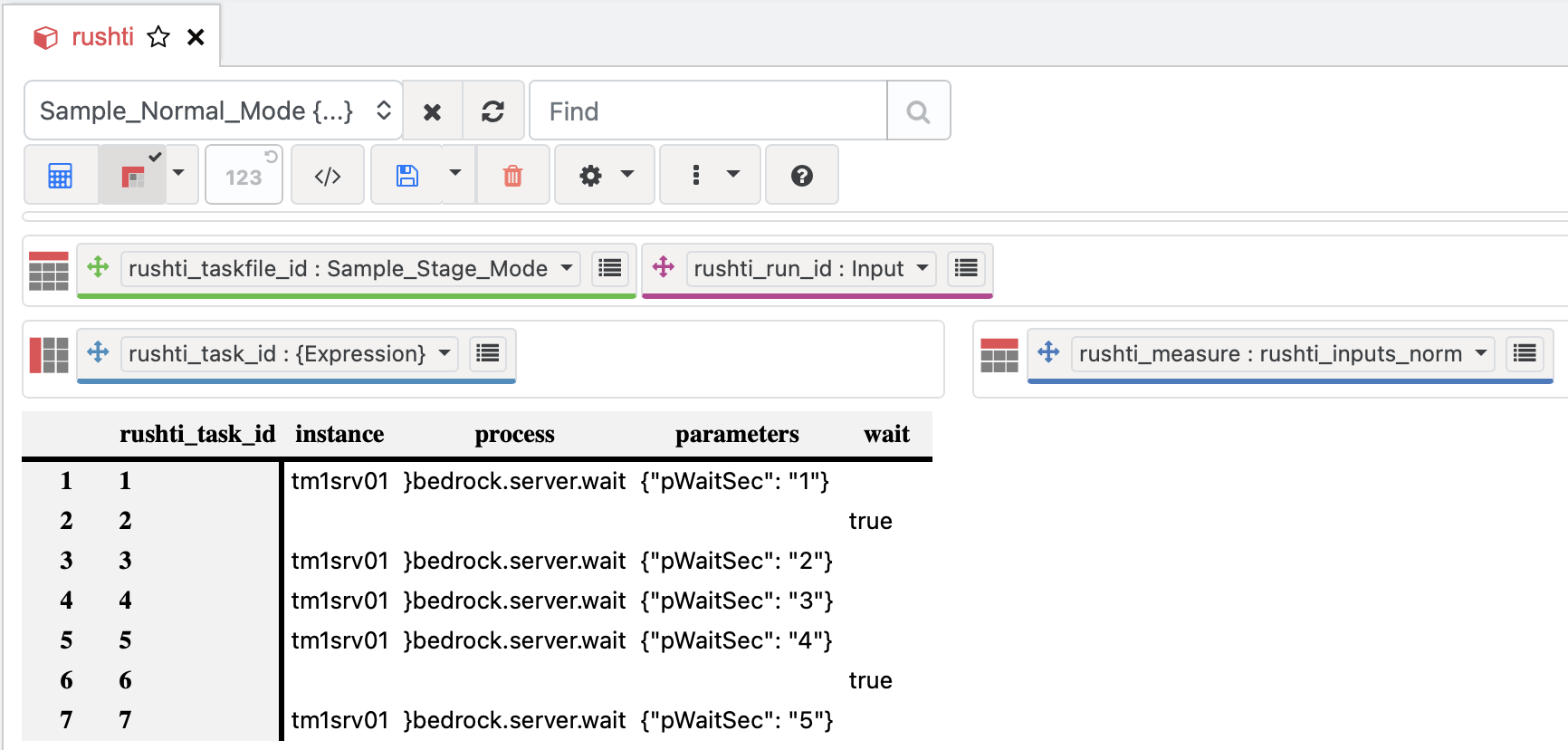
rushti cube in TM1 Architect — task definitions for Sample_Stage_Mode. Each row is a task with instance, process, parameters, and wait columns. Rows with wait = true act as group separators (like the wait keyword in TXT files).Each task is defined by writing values to these measures:
| Measure | Description |
|---|---|
instance |
TM1 server name (must match a [section] in config.ini) |
process |
TI process name to execute |
parameters |
JSON string, e.g. {"pWaitSec": "1"} |
wait |
Set to true to create a wait point (normal mode) |
predecessors |
Comma-separated task IDs (optimized mode) |
stage |
Optional stage name for grouping |
Run Tasks from TM1
RushTI reads the task definitions from the cube, builds the execution plan, and runs them — exactly like running from a file.
Optimized workflows need --mode opt
When you run from the cube, RushTI cannot auto-detect whether the workflow is wait-based (norm) or predecessor-based (opt) — the cube row layout is identical either way. It therefore defaults to norm, which uses the wait measure for sequencing and ignores the predecessors measure entirely.
To run an optimized workflow (one that defines explicit predecessors), you must pass --mode opt:
Without --mode opt, the predecessors silently disappear from the execution plan (RushTI logs a predecessors ignored in norm mode warning, but the run still proceeds). See Choosing the mode for cube reads below.
View Results in the Cube
Once the run completes, RushTI writes the results back to the same cube under a timestamped rushti_run_id element. Open the rushti_results subset to see execution data:
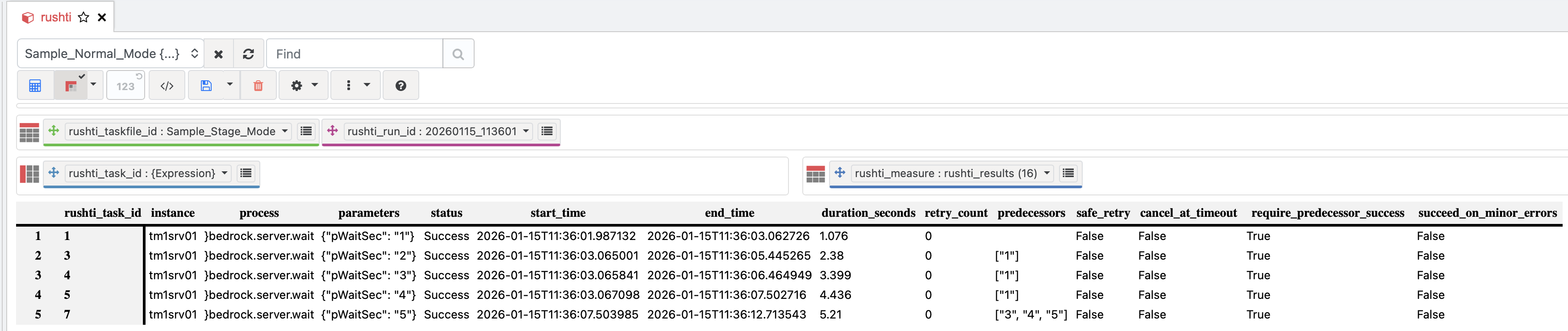
safe_retry and cancel_at_timeout.You can build MDX queries against this cube, create dashboard views in PAW, or write TI processes to analyze execution trends.
How Results Get to TM1
When push_results is enabled, RushTI exports a CSV file from the local SQLite stats database and uploads it to the TM1 server's file system. The file is named rushti_{workflow}_{run_id}.csv (with .blb extension appended automatically for TM1 versions prior to v12):
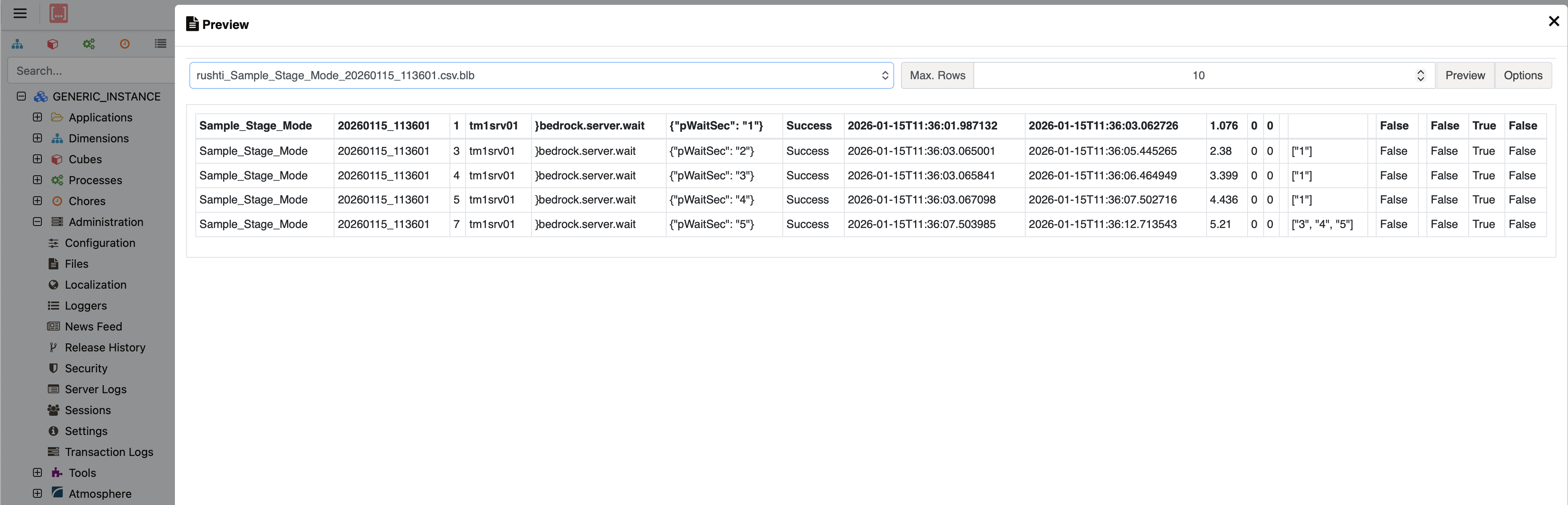
}rushti.load.results TI process to load this data into the cube.Loading Results into the Cube
The CSV file is pushed to TM1's file system, but it needs to be loaded into the cube using the }rushti.load.results TI process. Enable auto_load_results = true in your settings to have RushTI call this process automatically after each run, passing pSourceFile (the CSV filename) and pTargetCube (the configured cube name) as parameters.
Defining Tasks in the Cube
From TM1 Architect or PAW
Open the rushti cube and enter values like this:
| workflow | run_id | task_id | measure | value |
|---|---|---|---|---|
daily-refresh |
Input |
1 |
instance |
tm1srv01 |
daily-refresh |
Input |
1 |
process |
}bedrock.server.wait |
daily-refresh |
Input |
1 |
parameters |
{"pWaitSec": "2"} |
daily-refresh |
Input |
1 |
predecessors |
|
daily-refresh |
Input |
2 |
instance |
tm1srv01 |
daily-refresh |
Input |
2 |
process |
}bedrock.server.wait |
daily-refresh |
Input |
2 |
parameters |
{"pWaitSec": "5"} |
daily-refresh |
Input |
2 |
predecessors |
1 |
From a TI Process
Automate task creation with a TI process:
# Prolog tab
# Parameters: pWorkflow (String)

# Task 1: Wait 2 seconds
CellPutS('tm1srv01', 'rushti', pWorkflow, 'Input', '1', 'instance');
CellPutS('}bedrock.server.wait', 'rushti', pWorkflow, 'Input', '1', 'process');
CellPutS('{"pWaitSec": "2"}', 'rushti', pWorkflow, 'Input', '1', 'parameters');
CellPutS('', 'rushti', pWorkflow, 'Input', '1', 'predecessors');

# Task 2: Wait 5 seconds (depends on task 1)
CellPutS('tm1srv01', 'rushti', pWorkflow, 'Input', '2', 'instance');
CellPutS('}bedrock.server.wait', 'rushti', pWorkflow, 'Input', '2', 'process');
CellPutS('{"pWaitSec": "5"}', 'rushti', pWorkflow, 'Input', '2', 'parameters');
CellPutS('1', 'rushti', pWorkflow, 'Input', '2', 'predecessors');
Parameters as JSON
The parameters measure expects a JSON string. Use the format {"pName": "Value"} for one parameter or {"pYear": "2026", "pRegion": "All"} for multiple. Leave it empty if the process has no parameters.
Enable Result Pushing
Add these settings to config/settings.ini:
[stats]
enabled = true
retention_days = 90

[tm1_integration]
push_results = true
tm1_instance = tm1srv01
default_rushti_cube = rushti
Stats Must Be Enabled
TM1 result pushing requires [stats] enabled = true. The stats database stores results locally first, then pushes them to TM1.
Auto-Load Results
To automatically load the CSV into the cube after each push, enable auto_load_results:
[tm1_integration]
push_results = true
auto_load_results = true
tm1_instance = tm1srv01
default_rushti_cube = rushti
This calls the }rushti.load.results TI process on the target instance after uploading the CSV file. The process receives pSourceFile (the uploaded CSV filename, with .blb extension for TM1 < v12) and pTargetCube (the configured cube name) as parameters.
Using the Sample Workflows
The build command creates sample workflows you can run immediately to verify the setup:
# Run the normal mode sample
rushti run --tm1-instance tm1srv01 --workflow Sample_Normal_Mode --max-workers 4

# Run the stage-based sample
rushti run --tm1-instance tm1srv01 --workflow Sample_Stage_Mode --max-workers 4

# Run the optimized sample (with explicit dependencies) — note --mode opt
rushti run --tm1-instance tm1srv01 --workflow Sample_Optimal_Mode --mode opt --max-workers 4
Sample_Optimal_Mode defines its task ordering through the predecessors measure, so it requires --mode opt. Run it without that flag and RushTI reads the cube in norm mode, drops the predecessors, and falls back to wait-based sequencing — the run "works" but does not respect the dependency graph you defined.
Check the rushti cube afterward to confirm that results were written.
Choosing the Mode for Cube Reads
Unlike file sources — where the mode is auto-detected from the file's structure — a cube read cannot infer the mode. Every workflow occupies the same set of measures in the rushti cube (wait, predecessors, instance, process, …), so there is no structural signal that distinguishes a wait-based workflow from a predecessor-based one. You tell RushTI which one to use with --mode:
--mode |
Sequencing driver | wait measure |
predecessors measure |
|---|---|---|---|
norm (default) |
wait markers create sequential groups |
Used | Ignored (logs a warning if populated) |
opt |
Explicit predecessors form a DAG |
Ignored | Used |
# Wait-based (norm) workflow — the default, no flag needed
rushti run --tm1-instance tm1srv01 --workflow Sample_Normal_Mode --max-workers 4

# Predecessor-based (opt) workflow — --mode opt is required
rushti run --tm1-instance tm1srv01 --workflow Sample_Optimal_Mode --mode opt --max-workers 4
Make opt the default if most of your cube workflows use predecessors
If the majority of your cube-stored workflows are predecessor-based, set mode = opt in the [defaults] section of settings.ini so you don't have to pass --mode opt on every run. The CLI --mode flag still overrides it per run.
--mode and file sources
For --tasks (JSON/TXT files) the mode is auto-detected from content and --mode is ignored. The flag only changes behaviour for cube reads (--tm1-instance).
Configuration
Settings Reference
All TM1 integration settings live in the [tm1_integration] section of config/settings.ini:
| Setting | Default | Description |
|---|---|---|
push_results |
false |
Push a results CSV to TM1 after each run |
auto_load_results |
false |
Automatically call }rushti.load.results to load the CSV into the cube |
tm1_instance |
(none) | Default results-push target. Resolved against the 4-tier chain — CLI --tm1-instance > taskfile settings.tm1_instance > this key > default_tm1_instance (deprecated). |
default_tm1_instance |
(none) | Deprecated alias for tm1_instance. Honoured as the final fallback; warns at load only when actually used. |
default_rushti_cube |
rushti |
Name of the cube to use |
dim_workflow |
rushti_workflow |
Workflow dimension name |
dim_task_id |
rushti_task_id |
Task ID dimension name |
dim_run_id |
rushti_run_id |
Run ID dimension name |
Per-workflow target instance
The tm1_instance value that receives the results push is resolved against a four-tier precedence chain. The first non-empty value wins:
| Tier | Source | Where it's set |
|---|---|---|
| 1 | CLI | rushti run --tm1-instance <name> |
| 2 | Taskfile JSON | settings.tm1_instance inside the JSON task file |
| 3 | settings.ini (canonical) | [tm1_integration].tm1_instance |
| 4 | settings.ini (deprecated) | [tm1_integration].default_tm1_instance |
Tier 2 is the new workflow-level override — drop tm1_instance into any JSON task file's settings block to push that workflow's results to a specific instance without touching settings.ini:
{
  "version": "2.0",
  "metadata": { "workflow": "daily-finance-close" },
  "settings": {
    "push_results": true,
    "auto_load_results": true,
    "tm1_instance": "tm1prod"
  },
  "tasks": [ /* ... */ ]
}
When the upload runs, RushTI logs which tier supplied the value:
If all four tiers are empty and push_results is on, the run still succeeds — RushTI logs a warning and skips the upload:
WARNING push_results enabled but no TM1 instance configured (CLI --tm1-instance, taskfile settings.tm1_instance, or settings.ini tm1_instance).
Task-level instance vs workflow-level tm1_instance
Two instance-flavoured fields live at different nesting levels inside a JSON task file:
tasks[*].instance— task-level execution target. Where the individual TI process runs. Required on every task.settings.tm1_instance— workflow-level results target. Where the run's results are pushed at the end. Optional; overrides settings.ini.
They are independent. A workflow can execute its tasks across several instances (one per task) and push the consolidated results back to a single target instance.
Cube-sourced taskfiles have no tier 2
When a taskfile is loaded from the TM1 cube via rushti run --tm1-instance X --workflow Y, the cube schema does not carry a settings block — only task definitions. Resolution skips tier 2 and falls through directly to settings.ini (tiers 3 and 4). The CLI value (tier 1) still acts as both the source for the cube read and, in absence of other settings, the fallback results target.
Build Command Options
# Create objects (skip if they already exist)
rushti build --tm1-instance tm1srv01

# Force recreate (deletes and rebuilds all objects)
rushti build --tm1-instance tm1srv01 --force
Force Recreate Deletes Data
Using --force deletes the existing cube and all its data, including historical run results. Use this only when setting up a new environment or when you need a clean start.
Data Lifecycle
Understanding the data flow helps with maintenance and troubleshooting:
- During execution — Task results are stored in the local SQLite database (
data/rushti_stats.db) - Archiving — The taskfile used for the run is archived as JSON under
archive/{workflow}/{run_id}.jsonfor historical DAG reconstruction and auditing - After completion — A results CSV is pushed to TM1's file system
- Loading — The
}rushti.load.resultsTI process loads the CSV into therushticube (automatically ifauto_load_results = true) - New elements — The
rushti_run_idandrushti_workflowdimensions grow dynamically as new runs execute
Data Retention in TM1
Unlike the local SQLite database, TM1 cube data is not automatically cleaned up. Over time, the rushti_run_id dimension will accumulate thousands of elements. Consider scheduling a TI process to remove old run elements periodically.
Keep It Clean
Write a TI process that removes rushti_run_id elements older than your retention policy (e.g., 90 days). Run it weekly via a scheduled task or include it in your RushTI workflow.
Troubleshooting
Build Command Fails
Symptom: rushti build reports an error creating dimensions or cubes.
Common causes and solutions:
- Insufficient permissions — The TM1 user must have ADMIN rights to create dimensions and cubes. Check the user role in TM1 Security.
- Objects already exist — Use
--forceto recreate them. - Connection failure — Verify the instance name matches a section in your
config/config.inifile.
Results Not Appearing in Cube
Symptom: Workflow runs successfully but the rushti cube has no results.
Check these settings:
[stats] enabled = true— Stats must be on[tm1_integration] push_results = true— Push must be enabledauto_load_results = true— Or manually run the}rushti.load.resultsTI process- The TM1 instance must be reachable after execution completes
Enable debug logging for more detail:
Performance Overhead
TM1 result pushing adds a small overhead at the end of each run (typically 2-5 seconds for a 50-task workflow). The overhead scales linearly with task count. If this is a concern for very large workflows, you can disable push and rely on the local SQLite database and HTML dashboards instead.
Calling RushTI from TM1 (ExecuteCommand)
You can trigger RushTI directly from a TI process using ExecuteCommand. This is useful for orchestrating RushTI runs as part of a larger TM1 workflow.
Setup
- Set
RUSHTI_DIRas a system environment variable (not user-level) so the TM1 service can see it - Find the full path to the RushTI executable — the TM1 service typically does not have the same
PATHas your user session
To find the path:
TI Process Code
# Using pip-installed RushTI (use the full path from 'where rushti')
cmd = 'cmd /c C:\Python312\Scripts\rushti.exe run --tm1-instance tm1srv01 --workflow DailyETL --max-workers 4';
ExecuteCommand(cmd, 1);
# Using standalone exe
cmd = 'cmd /c C:\rushti\rushti.exe run --tm1-instance tm1srv01 --workflow DailyETL --max-workers 4';
ExecuteCommand(cmd, 1);
Common Pitfalls
- "The system cannot find the file specified" — The TM1 service cannot find
rushtion its PATH. Use the full path to the executable (e.g.,C:\Python312\Scripts\rushti.exe). - "Config file not found" — The TM1 service runs under a different user context and may not see user-level environment variables. Set
RUSHTI_DIRas a system environment variable (System Properties → Advanced → Environment Variables → System Variables). - Always use
cmd /c— TM1'sExecuteCommanddoes not invoke a shell by default. Wrapping withcmd /censures the command runs in a proper shell environment. - Use
ExecuteCommand(cmd, 1)— The second parameter1makes TM1 wait for RushTI to complete before continuing the TI process.
Log File Location
When launched from ExecuteCommand, the process working directory is typically C:\windows\system32. RushTI automatically resolves relative log file paths (configured in logging_config.ini) against the application directory (RUSHTI_DIR or the exe directory), so rushti.log is created in the correct location regardless of the working directory. See Logging for details.
Detailed Results
By default, when a workflow uses expandable tasks (parameters with the * suffix), all expansions of one parent task share the same task_id and the cube load step collapses them into a single summary row per original task_id. This is the only viable behaviour with the cube's task_id dimension, but it hides per-execution detail (individual durations, which specific parameter combo failed, retry counts per expansion).
The --detailed-results flag (or detailed_results = true in settings.ini / the taskfile settings block) flips this: every executed TI gets its own row in the cube.
What Changes in the Cube
- One row per executed TI. A workflow
[1, 2*(60), 3]produces 62 rows instead of 3. - Sequential gap-free
task_id. All rows are renumbered starting at 1 (1..62). original_task_idmeasure preserves identity. Every row carries the pre-renumber ID, so the 60 expansions of2*all showoriginal_task_id = "2".predecessorsreferencesoriginal_task_id. Downstream tasks reconcile fan-in by joiningpredecessorsagainstoriginal_task_idin the same view — not against the newtask_id.- The stats DB is unchanged. Results in the local SQLite/DynamoDB store remain keyed by the original
task_id. The renumbering is purely a presentation step at upload time.
The new original_task_id measure is added to the rushti_measure dimension automatically the next time you run rushti build (the upgrade is non-destructive — existing cube data is preserved). The }rushti.load.results TI is also rewritten to populate the new column.
Cross-Run Stability
task_id values under detailed-results are not stable across runs — if the MDX in an expandable task returns a different number of members between runs, every renumbered ID downstream shifts. This is by design. The stable identity that survives across runs is the workflow definition stored under the Input element of the rushti_run_id dimension. For cross-run analysis, join through that input snapshot, the task_signature field in the stats DB, or the original_task_id measure.
Stage Grouping Recommendation
Assign a unique stage value per expandable task so the fan-out groups visually in the cube. Every expansion inherits the parent's stage and lands together in views.
Dimension Sizing
The rushti_task_id dimension defaults to 5,000 members. A workflow whose detailed-results renumbering exceeds 5,000 will fail to load into the cube — extend the dimension before enabling detailed-results on very wide workflows. RushTI does not auto-grow the dimension at upload time and does not perform extra TM1 round-trips to detect this case.
DAG Visualization Mirrors the Same Behavior
rushti stats visualize rebuilds the DAG from the latest run's recorded predecessors. When that run involved expansions, the DAG now renders one node per executed TI, suffixing shared task_id values (2.1, 2.2, 2.3) and fanning predecessor edges out to every expansion of the parent. This is the visual analog of --detailed-results in the cube: per-execution rows in the cube ↔ per-execution nodes in the DAG.
The stats database is the single source of truth for both the dashboard and the DAG. Editing the workflow definition (in the cube or in a JSON file) without re-running it will not refresh either visualization — re-run the workflow to update.
Customize Further
- Statistics & Dashboards — The local SQLite database that feeds TM1 integration
- Settings Reference — Complete settings documentation
- CLI Reference — Full CLI command options including the build command
- Self-Optimization — Use execution data for automatic task reordering