Exporting & Importing Orders
Promote optimized dimension orders from the instance where you ran benchmarks to the instance where they should take effect, usually DEV → PROD. There are two paths: the Sync Order page (interactive) or CLI-compatible JSON files (scripted).
Export from the UI
Open the Sync Order page:
- Connect to the source instance and scan.
- Drag cubes from the source list to the target panel. Drag order = apply order.
- Click Export to Folder.
OptimusPy writes one JSON per cube into the exports folder, named after the cube. The folder is exports/ by default, and the Folders card on Settings changes it; the examples on this page use the default. In the file name, characters other than letters, digits, ., _ and - are dropped:
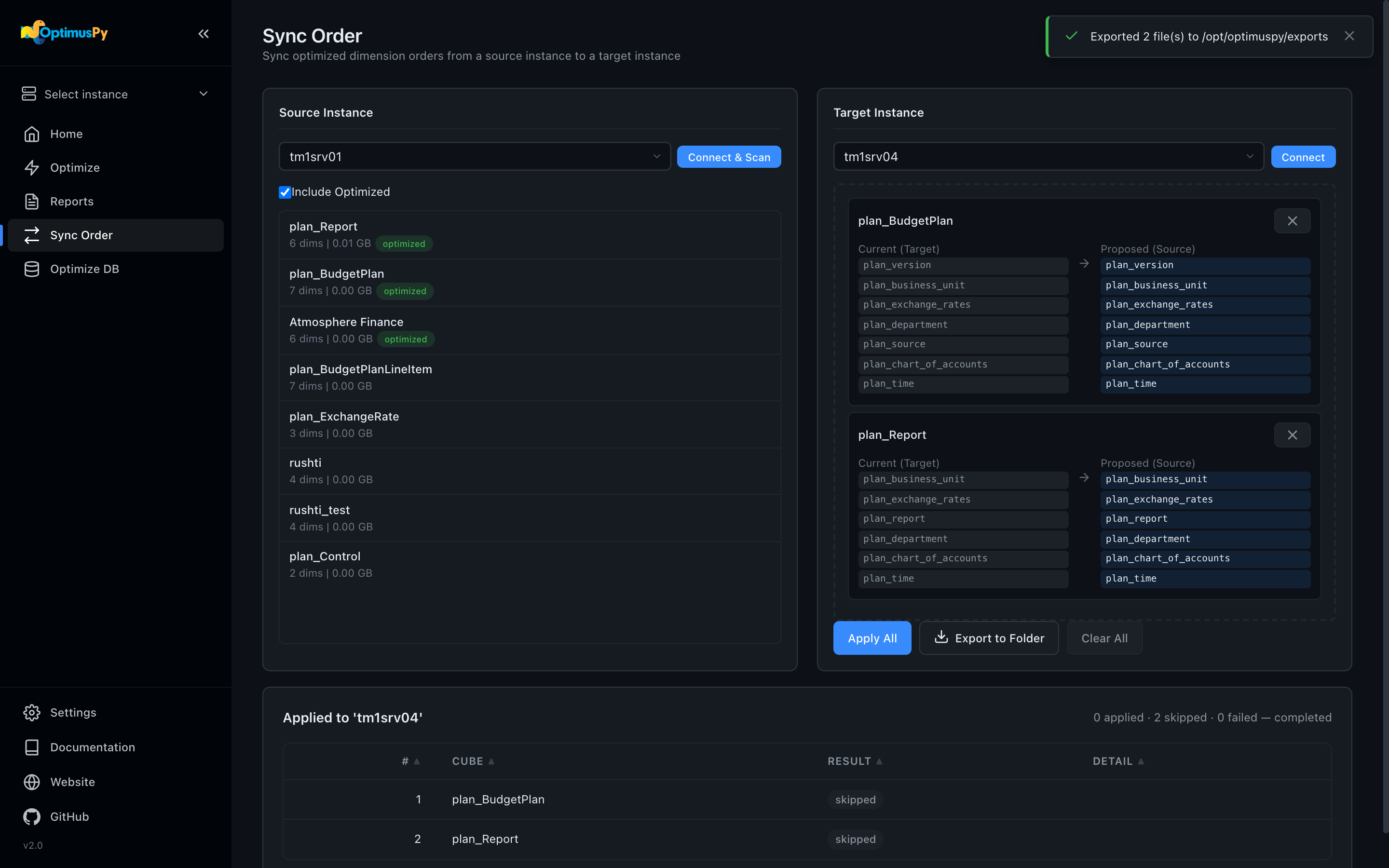
That export wrote one file per cube:
CLI-compatible JSON format
Each exported file uses the same schema as a manually-written set_order.json:
{
  "instance": "tm1srv01_prod",
  "cube": "Sales",
  "predefined_orders": [
    ["Time", "Version", "Product", "Customer", "SalesMeasure"]
  ],
  "executions": 1,
  "output": "csv"
}
The instance field is the target instance you had connected at export time, or the source instance if you hadn't connected a target yet. Change it if you want to apply to a different target.
Bulk apply with the CLI
A loop over the exports folder:
Each optimuspy set call exits non-zero on failure, which is handy for CI/CD pipelines. One thing to bear in mind is that an order which would move the locked last slot is skipped with exit code 0, so a loop that only checks the exit status won't notice it; grep the output for REORDER SKIPPED as well (see Set Mode).
Apply via Sync Order page
If you'd rather apply from the UI, click Apply All on the Sync Order page. This runs the same update_storage_dimension_order calls in a background job with live progress on the Jobs page.
| Method | When to use |
|---|---|
| CLI loop | Scripted deployments, version-controlled apply, CI/CD |
| Apply All | Ad-hoc promotions, one-off DEV → PROD workflows |
| Direct call to a single exported file | Rolling out one cube at a time |
Verifying the apply
After apply, the optimuspy set log shows RAM before and after:
SET mode: applying dimension order for cube 'Sales' to: ['Time', 'Version', ...]
Dimension order updated for cube 'Sales'
RAM before: 4.21 GB, after: 2.84 GB
For a full audit trail across many cubes, capture stdout to a file: