Taking an Order to Production
Once a run on DEV has found a better order, apply it to PROD without benchmarking there.
With Sync Order (UI)
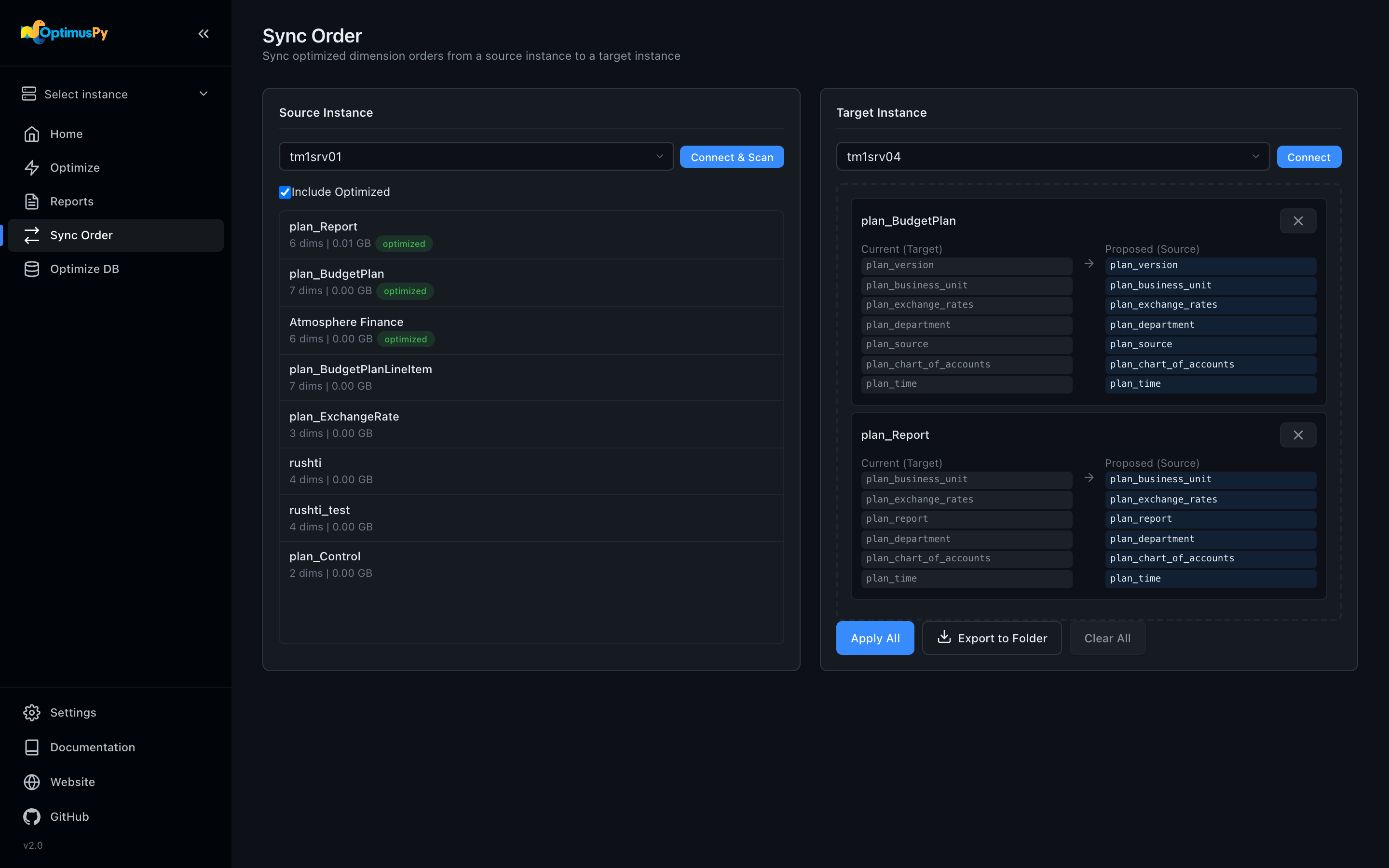
- On Sync Order, choose the source instance (DEV) and click Connect & Scan.
-
Choose the target instance (PROD) and click Connect. Drag cubes from the source list onto the target. Each card shows the target's current order next to the proposed one.
-
Click Apply All. A cube already in the proposed order is skipped. Or click Export to Folder to write one JSON per cube to
exports/instead.
See the Sync Order Page for every control on the page.
With set (command line)
Each exported file is a set config. On the production machine, run optimuspy set exports/Sales.json. set refuses an order that moves the locked slot and changes nothing in that case. See Set Mode and Exporting & Importing Orders.
For a worked example with a deployment loop and a rollback, see PROD Promotion Workflow.
That's the single-cube journey. If you'd rather shrink a whole instance first and then benchmark only the cubes that matter, the last page covers that.