Settings Page
Choose which config.ini OptimusPy reads, test your TM1 connections, and manage the browser theme, the local cache and saved cube configs. Settings doesn't edit a config.ini: you maintain the file where it lives, in a text editor or in the tool it belongs to.
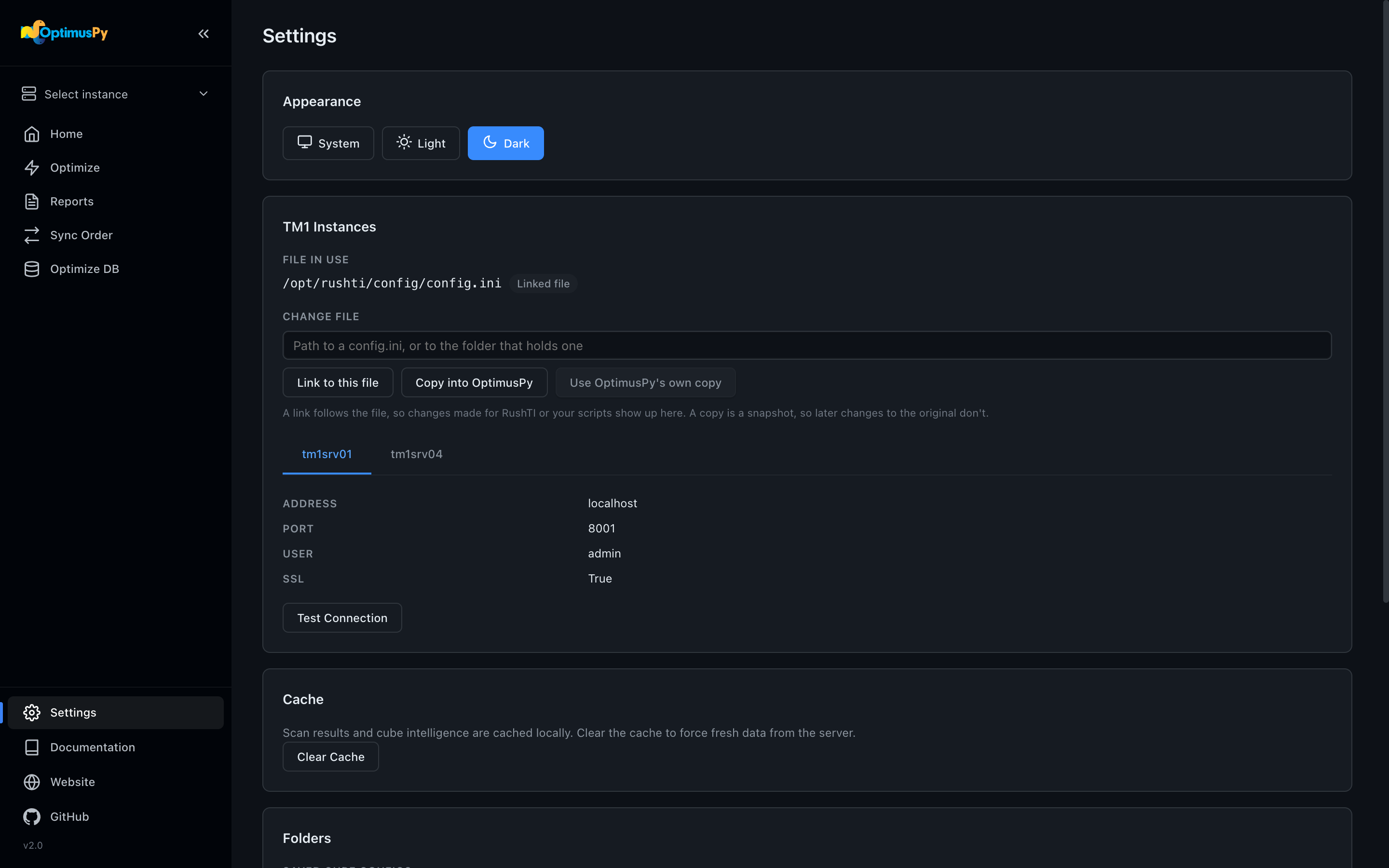
Appearance
Theme switcher: System (follows OS preference), Light, or Dark. Persists in localStorage.
TM1 Instances
The card shows, from top to bottom:
- File in use. The full path of the
config.iniOptimusPy is reading, and where that choice came from:- OptimusPy's own copy:
config/config.ini; - Linked file: a file linked from this page;
- Set by --config at launch: the file given with
--config.
- OptimusPy's own copy:
-
Change file. Type or paste the path to a
config.ini, or to the folder that holds one. Quotes around the path, which Windows Copy as path adds, are removed. Then pick one of two options:- Link to this file reads the file where it is, so changes made for RushTI or your scripts show up here.
- Copy into OptimusPy puts a snapshot in
config/config.ini, so later changes to the original don't. Ifconfig/config.inialready exists, a confirmation asks before replacing it.
When a linked file is in use and
config/config.iniexists, Use OptimusPy's own copy switches back to it. This part is hidden when--configchose the file: restart without the flag to change it here. 3. One tab per instance, with its fields read-only. Secrets such as the password are never shown.
The choice is saved in config/settings.ini, so the command line uses the same file: optimuspy optimize x.json without --config reads the file you picked here. See TM1 Connection for the order in which the choices apply.
After you switch files, the UI disconnects, forgets the passwords typed in the Connect dialog and clears the cache, because the same instance name can point at a different server in the new file.
If the file in use is missing or doesn't parse, the card says so in place of the tabs. If there's no config.ini yet, it tells you to point to one above, or to create config/config.ini from config/config.ini.example.
Test Connection
Connects to the TM1 server with the instance's fields from config.ini, and with the password typed in the Connect dialog if there is one. Returns the server name and cube count on success, or a clear error toast on failure.

Cache
Two caches are stored in your browser's localStorage:
| Cache | Key prefix | TTL |
|---|---|---|
| Scan results | op-scan- |
24 hours |
| Cube intelligence (dimension metadata) | op-intel- |
7 days |
Click Clear Cache to wipe both, plus the in-memory state. Use this after server-side changes (deleted string elements, renamed dimensions, fresh data load) to force a clean fetch.
Folders
Where the UI writes JSON files, one row each:
- Saved cube configs: where the Optimize page saves a cube config.
cube-configs/by default. - Sync Order exports: where Sync Order's Export to Folder writes.
exports/by default.
Each row shows the folder in use, marked (default) when it's the default. Type a path and click Change folder to use another one; it's created at once, so a folder that can't be written is reported here rather than at the first save. Use default, shown when the folder isn't the default, goes back to it. The choice is saved in config/settings.ini as cube_configs_dir and exports_dir.
Files already saved stay in the old folder. After the cube configs folder changes, the list below shows the files in the new one.
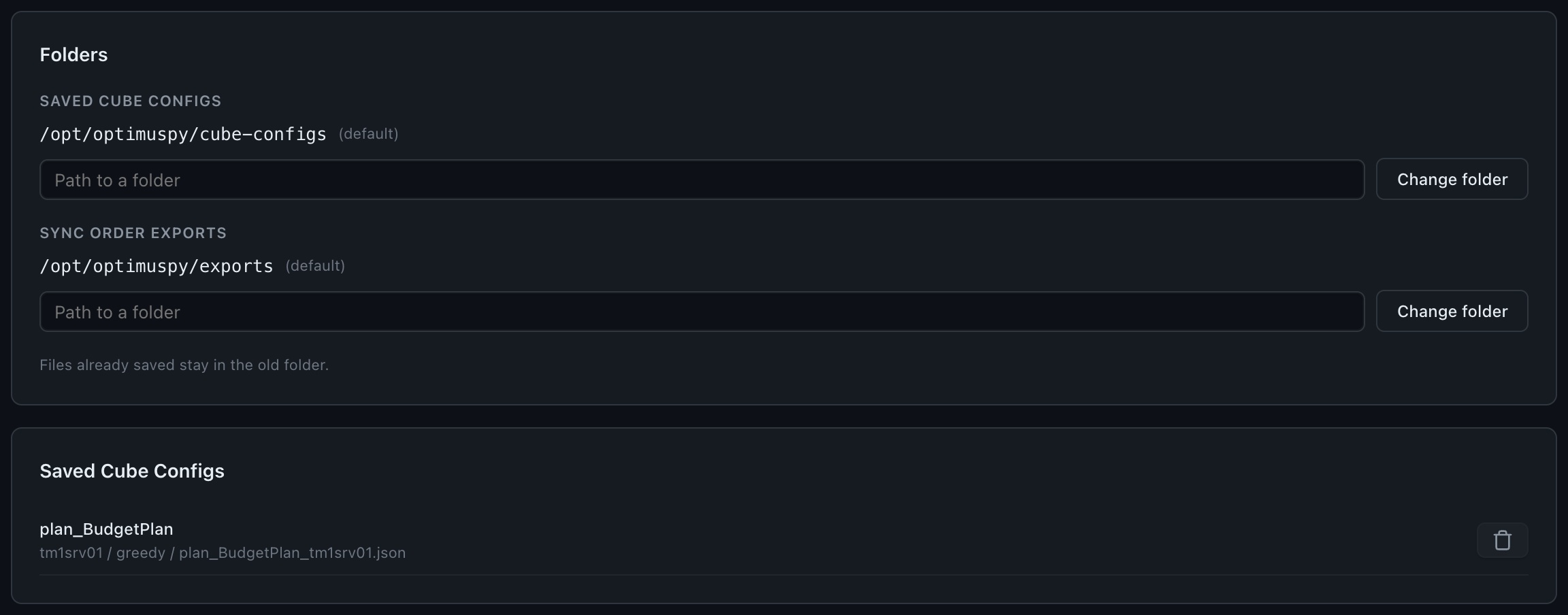
Saved Cube Configs
Lists every JSON config saved in the cube configs folder from the Optimize workflow. Each row shows the cube, then its instance, mode (greedy or predefined) and file name, with a trash button to delete it. Useful for cleaning up experiments.