Optimize Page
The Optimize page is the heart of OptimusPy. Connect to an instance, scan for candidate cubes, and configure and run a benchmark for the cube you pick.
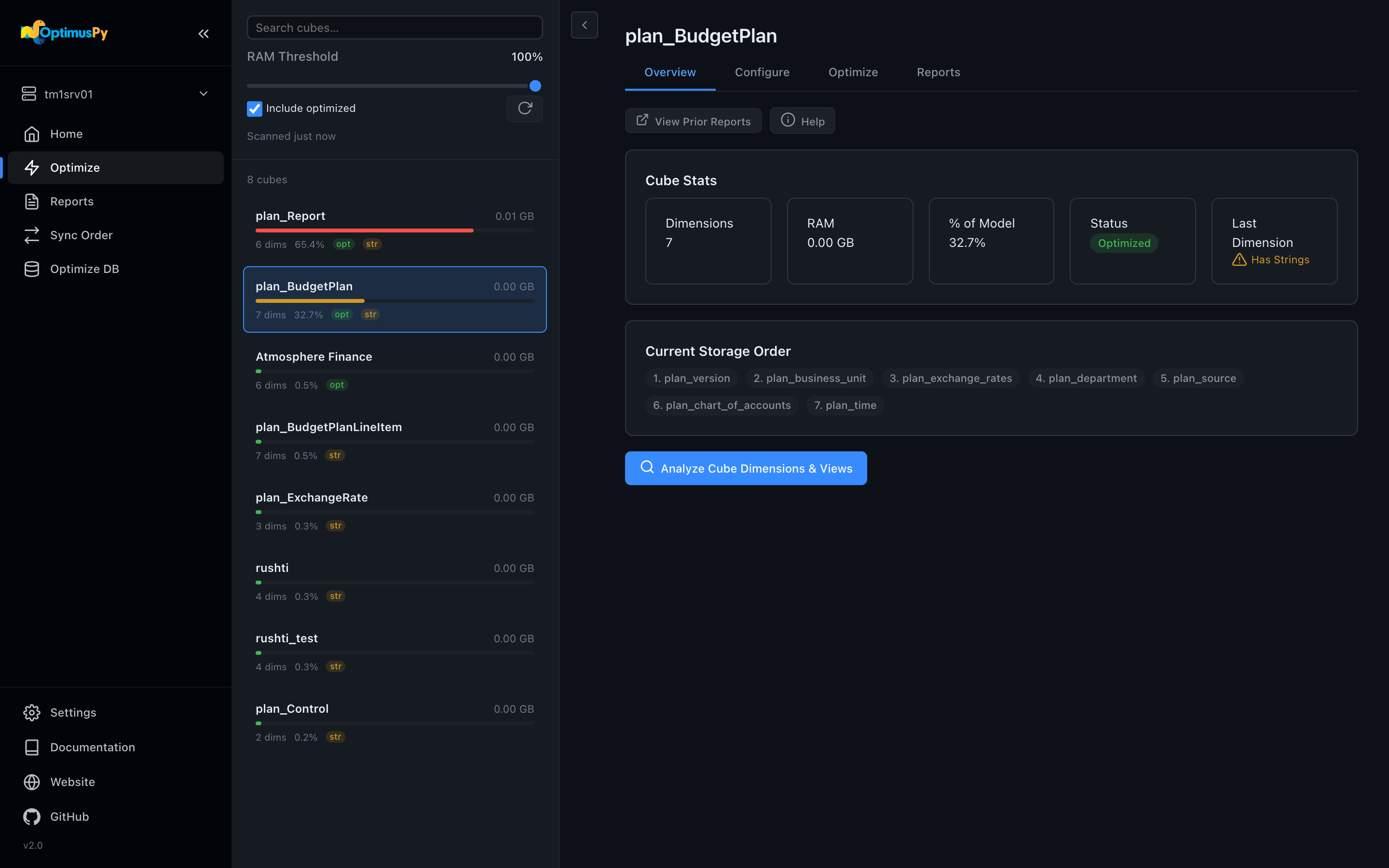
Connecting & scanning
- Pick an instance from the sidebar Instance Switcher. The UI runs a connection test and a fast model scan.
- Adjust the RAM Threshold slider to control how aggressively cubes are filtered (default: 60% of total model RAM).
- Tick Include optimized to also list cubes that already have a custom storage order.
The scan reads from the TM1py Metrics service (cube_memory_used), which works the same on v11 and v12, in a single fast round-trip. Results are cached locally for 24 hours; click the refresh button next to Include optimized to scan again.
Cube workspace
Click any cube in the list to open its workspace. Four tabs:
Overview
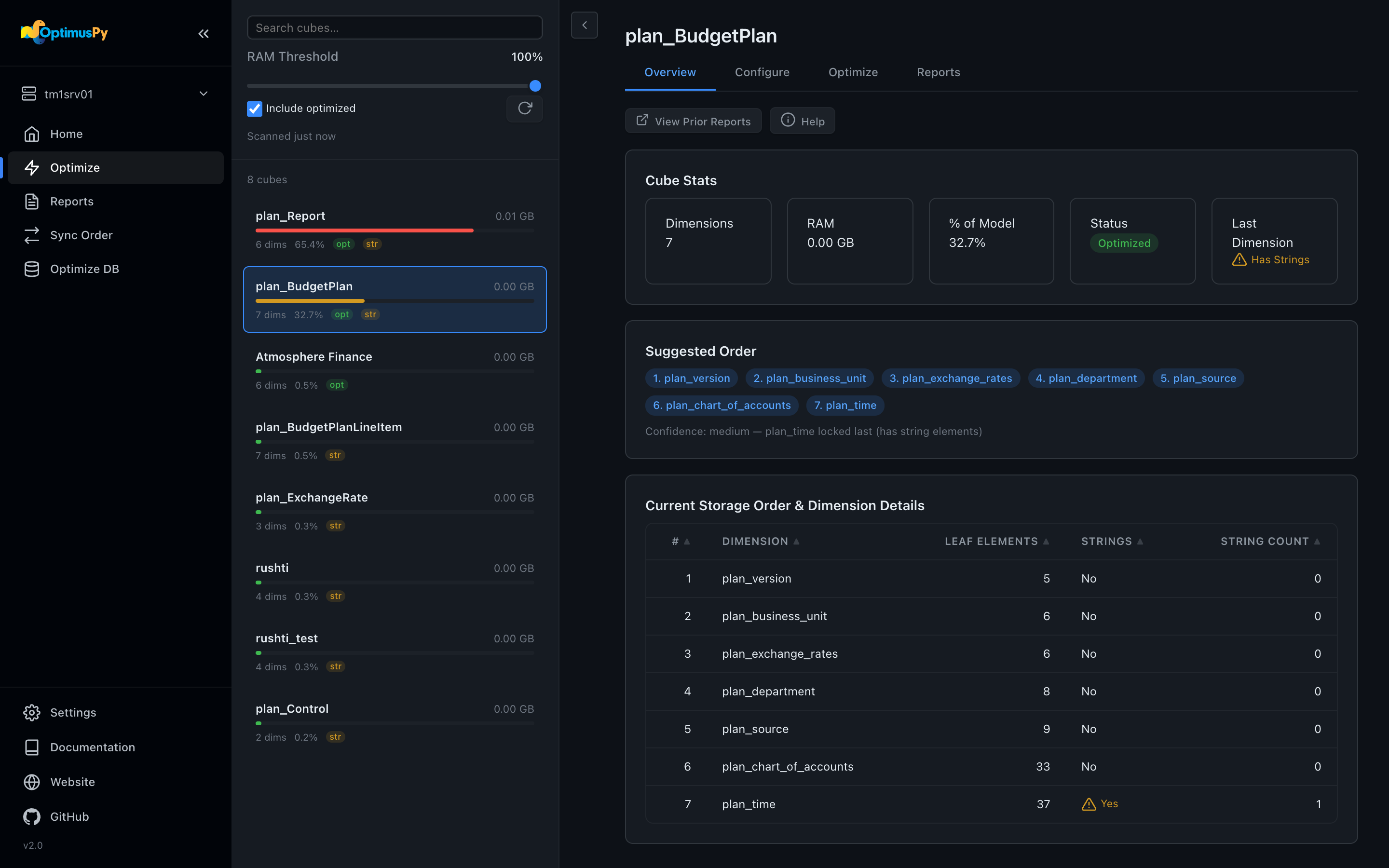
Cube stats and the current storage order. Click Analyze Cube Dimensions & Views to load the rest (it's a separate step because it reads every dimension): a dimension table with leaf element counts and string-element flags, and a Suggested Order, which is the dimensions ordered by leaf-element count, fewest first, with a string-bearing dimension kept last. The Configure tab loads the same data, so if you've been there first the table is already filled in.
Configure
Pick the optimization mode and tune parameters. Available modes:
- Greedy: the full outside-in benchmark (default)
- Predefined: test a known list of orders
- Position: optimize a single position
- Dimension: optimize a single dimension
For each mode you can:
- Pick views to benchmark query speed
- Pick TI processes to benchmark ETL time (with parameter overrides)
- Set executions (how many times each query/process runs; the median counts)
- Choose the output format, CSV or Excel (XLSX)
- Tick Fast mode (last and first slot only) for a shorter greedy run that searches only the two end slots
- Tick Auto-apply best to write the best order back to the cube
- Set dimensions to exclude (kept fixed during the search)
- Set dimension position rules (lock specific dims to specific positions). Add Rule asks for a dimension and a Lock to Position: First, Last, or a Position numbered from 1 like the Overview table. The config counts from 0, so Position 3 is written as
2. One rule per dimension and one per position. - List orders to ignore (orders the greedy search should skip)
Reset puts the form back to its defaults.
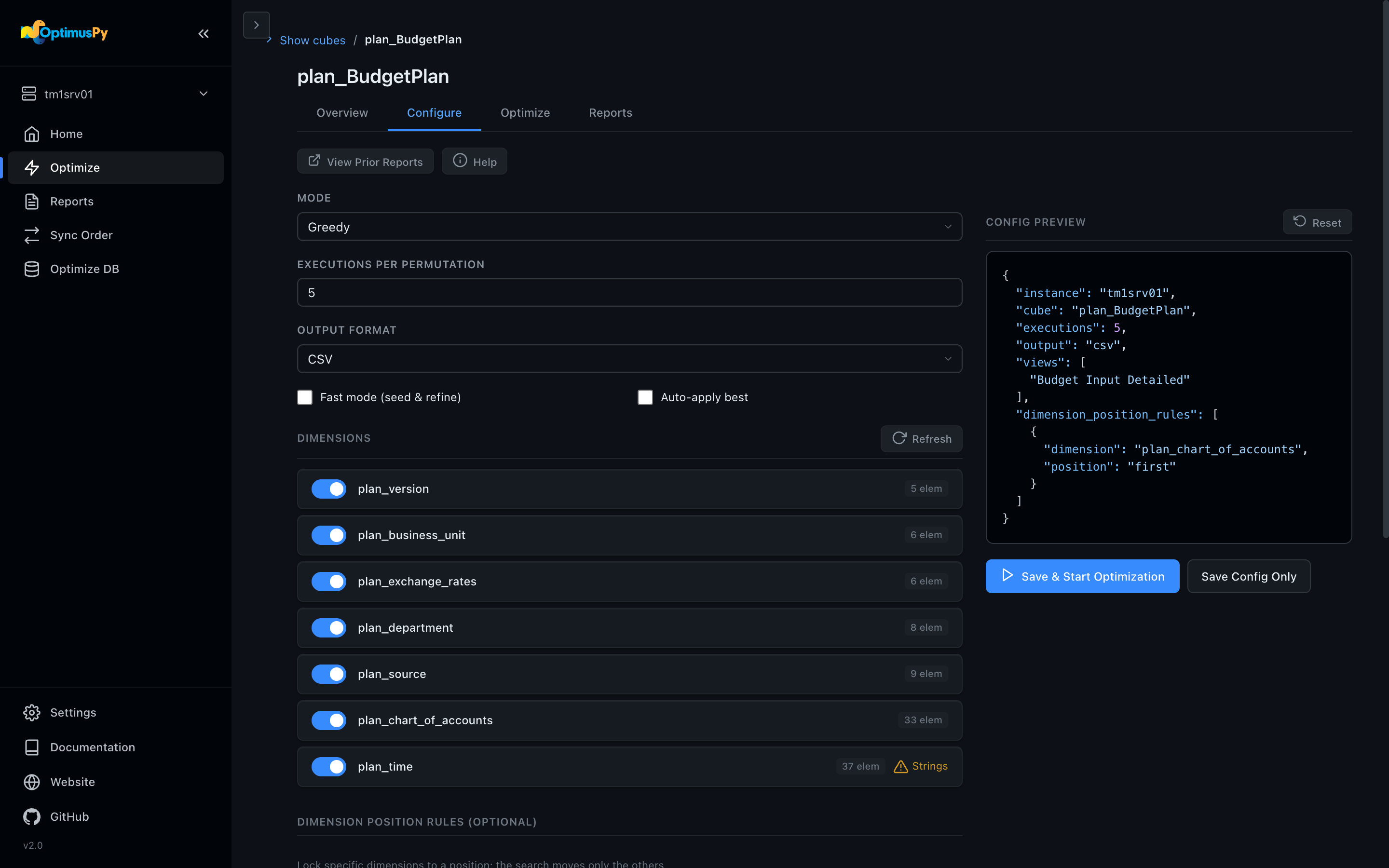
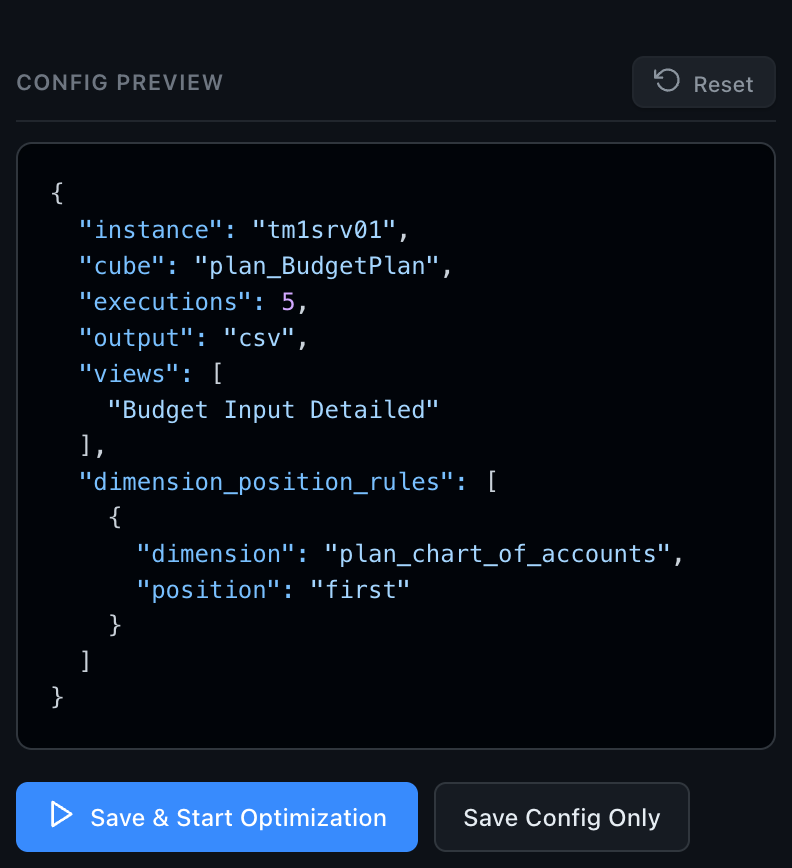
The Config Preview beside the form shows the generated JSON config (it's identical to what the CLI consumes). Save & Start Optimization saves it to the cube configs folder, cube-configs/ by default, starts the job in the background and opens the Optimize tab. Save Config Only saves it without starting. The Folders card on Settings changes the folder.
Running a saved config from a TI process
After Save Config Only, a pop-up shows the file's full path and the TI code that runs it, with a Copy TI code button:
sCommand = '"C:\OptimusPy\optimuspy.exe" optimize "C:\OptimusPy\cube-configs\Sales_tm1srv01.json"';
# 1 waits for OptimusPy to finish; 0 starts it and carries on.
ExecuteCommand(sCommand, 1);
Paste it into the Prolog of a TI process on the same TM1 server. The code names the optimuspy.exe the UI is running from, so it assumes OptimusPy is installed on the TM1 server, and it reads the same config.ini as the UI. The password therefore has to be stored in config.ini: the one typed into the UI isn't saved.
ExecuteCommand doesn't pass OptimusPy's exit code back to TI, so to see how a run went, read logs/optimuspy.log in the OptimusPy folder (the pop-up shows its full path).
Optimize
The job's status, elapsed time and live log, with a Stop button while it runs. A run that fails shows as Failed, with the error in the log. The tab finds the cube's job on the server, so it also shows a job started in another browser tab or before a reload, replaying its log from the start.
Reports
The cube's runs on the connected instance, newest first: each run's Open report, and its CSV or XLSX as a small link beside it. View Prior Reports, above the tabs, opens the Reports page with the cube's group open; it's available once the cube has a report.
Stopping a job
Click Stop on the cube's Optimize tab (the sidebar Activity Monitor takes you there). OptimusPy cancels the TM1 threads the job's session is running (a query, or a reorder in flight), puts the cube back in its original order (best-effort), restores the original VMM/VMT on TM1 v11, and keeps the checkpoint, so re-running the same config resumes. See Checkpoints & Resume.
What happens next
The report and its data land on the Reports page. The Jobs page lists every job since the UI server started.