PROD Promotion Workflow
End-to-end: optimize in DEV (or any production-like instance), export the results, apply to PROD. The recommended OptimusPy lifecycle.
Why this workflow exists
OptimusPy is never run in production. The benchmarking process:
- Sets VMM / VMT to 1,000,000 (disables stargate caching during the run)
- Runs hundreds of
update_storage_dimension_ordercalls (each rewrites the cube on disk) - Runs queries / processes against the cube repeatedly
These are fine in a non-PROD environment with the same data and infrastructure. They're not OK in production. The PROD promotion workflow uses OptimusPy's results without re-running benchmarks against PROD.
Step 1: Optimize in DEV
Run benchmarks on a production-like environment (DEV, UAT, PA Playground, anywhere with the same data shape):
Where sales_dev.json points at the DEV instance:
{
  "instance": "tm1srv01_dev",
  "cube": "Sales",
  "views": ["Optimus_Daily_Drill", "Optimus_Monthly_Summary"],
  "executions": 5,
  "output": "xlsx"
}
The HTML report names the winning order. It's worth checking it makes sense, because sometimes the best order has surprising tradeoffs you want to validate by hand.
Step 2: Export from Sync Order
Export the winning orders from the Sync Order page with Export to Folder, as described in Taking an Order to Production. Connect the source to tm1srv01_dev, where you ran the benchmark.
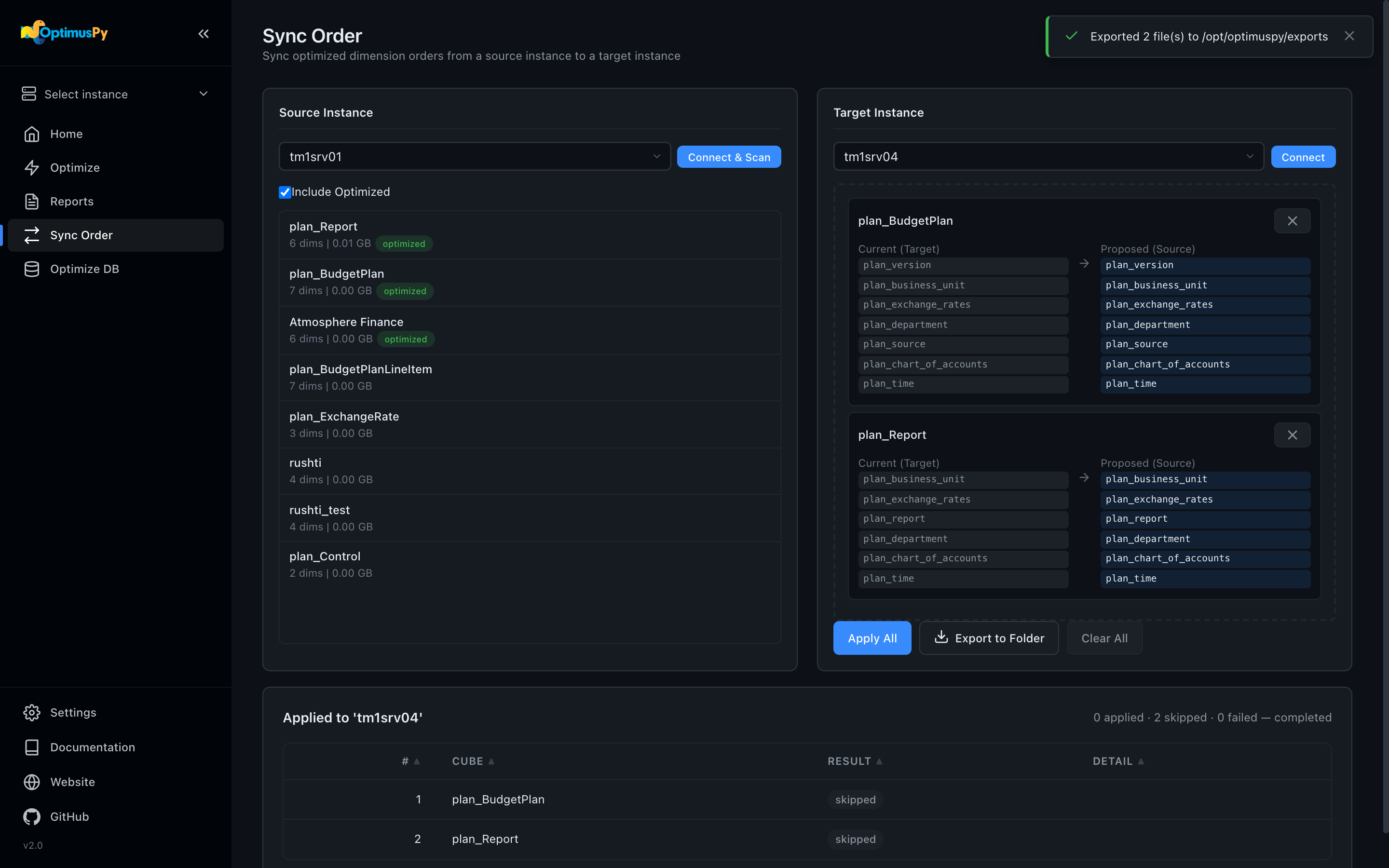
The export writes one set config per cube into exports/:
Each file's instance field is the target you had connected (or the source, if you hadn't connected a target); edit it if needed.
Step 3: Apply to PROD
Two choices.
Option A: From the UI
Apply the orders from the same Sync Order page with Apply All, as described in Taking an Order to Production. The job runs in the background; live progress on the Jobs page.
Option B: Via CLI (recommended for CI/CD)
Edit each exported JSON's instance field to point at PROD, then loop:
for f in exports/*.json; do
  optimuspy set "$f" --config config/production.ini
done | tee deployment-$(date +%Y-%m-%d).log
Capture the log file. Each apply records RAM before and after, which is useful for change tickets.
Step 4: Verify
After apply, open the Optimize page in the UI on PROD and tick Include optimized, so cubes whose storage order now differs from their visual order are listed too. Each cube's Overview tab shows its current storage order, which should now match what you applied. optimuspy scan does not help here: it lists only cubes whose storage order still matches their visual order.
Rollback
Keep the previous orders in version control. If a rollback is needed, restore the prior exported files and re-run the loop. The CLI is idempotent: re-applying the same order is safe.