For a first run from start to finish, see the User Guide: Your First Optimization.
It's a single-page app served by a lightweight Python HTTP server, with no extra dependencies and nothing in the cloud.
Launching
Your default browser opens automatically at http://127.0.0.1:8765. The server runs in the foreground; Ctrl+C stops it. ui_port and open_browser in config/settings.ini change the port and stop the browser tab.
Custom port
Custom config file
A file passed with --config wins over the one chosen on the Settings page, for as long as the UI runs; see Which config.ini is read.
From the executable
Double-click optimuspy.exe, or run it from a command prompt:
With Python installed, optimuspy ui does the same.
The executable ships without a config.ini. Create config/config.ini next to it from config/config.ini.example, or link the config.ini you already have on the Settings page.
Sidebar navigation
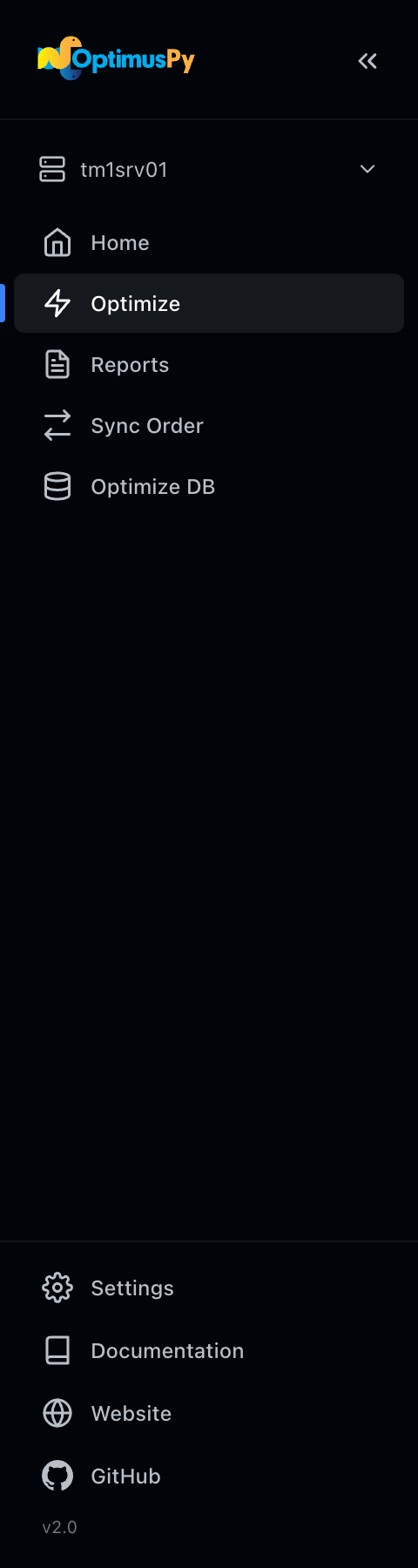
| Item | Purpose |
|---|---|
| Instance switcher | Pick the active TM1 connection. It is the instance the Optimize page works on; Sync Order and Optimize DB pick their own. |
| Home | Connect to an instance, and read Tips & Getting Started: the steps of a run, the optimization modes and tips on dimension order. It's where the UI opens, and it stays reachable after you connect. |
| Optimize | Scan candidates and run benchmarks for one or many cubes. |
| Reports | Every run's HTML report and data files, by instance, cube and run. |
| Sync Order | Promote dimension orders from a source instance to a target instance. |
| Optimize DB | Reorder every cube on an instance within a time limit: by leaf-element count, fewest first, or by measuring the last slot of the cubes you pick. See the Optimize DB Page. |
| Settings | At the bottom of the sidebar: choose the config.ini, test connections, theme, and local cache. |
| Documentation, Website, GitHub | Below Settings: this documentation, the OptimusPy landing page and the repository, each in a new tab. The Home page links the first two as well. |
The sidebar collapses to icons on narrow screens, and folds away behind a menu button on a phone. While a job is running, the Activity Monitor appears below the page links and names it; click it to open the job's page. The Jobs page has no sidebar item: open it at #/jobs, for example http://127.0.0.1:8765/#/jobs.
Passwords
The first time you use an instance after the page loads (from the instance switcher, Sync Order or Optimize DB), a Connect to Instance dialog asks for its password. Leave it blank if config.ini stores the password. The password you type is kept by the page only, so a reload asks again. A refused login shows TM1's answer, for example Connection failed: TM1 returned 401 Unauthorized.
Live progress (SSE)
Long-running jobs stream progress over Server-Sent Events, so you see per-iteration updates without refreshing the page, in any modern browser. An optimization or an Optimize DB run is not tied to the tab that started it: open its page after a reload or in a second tab and the log is replayed from the start. A sync is the exception, because its per-cube results live only in the tab that started it.
Caching
Scan results and per-cube intelligence (leaf counts, suggested orders) are cached in your browser's localStorage:
- Scan cache → 24-hour expiry
- Intelligence cache → 7-day expiry
If you change something on the TM1 server (e.g., delete string elements, rename a dimension), use Settings → Clear Cache to force a fresh fetch.
Pages at a glance
In sidebar order:
- Home: instance tiles to connect, and the getting-started guide.
- Optimize: the main workflow, scan, configure, run.
- Reports: every run's report and data files, by instance, cube and run.
- Sync Order: drag-and-drop cross-instance promotion.
- Optimize DB: reorder every cube on an instance within a time limit.
- Settings: connections, theme, cache and saved configs.
- Jobs: every job since the UI server started (no sidebar item).